Setup in 6 steps
Download and unzip
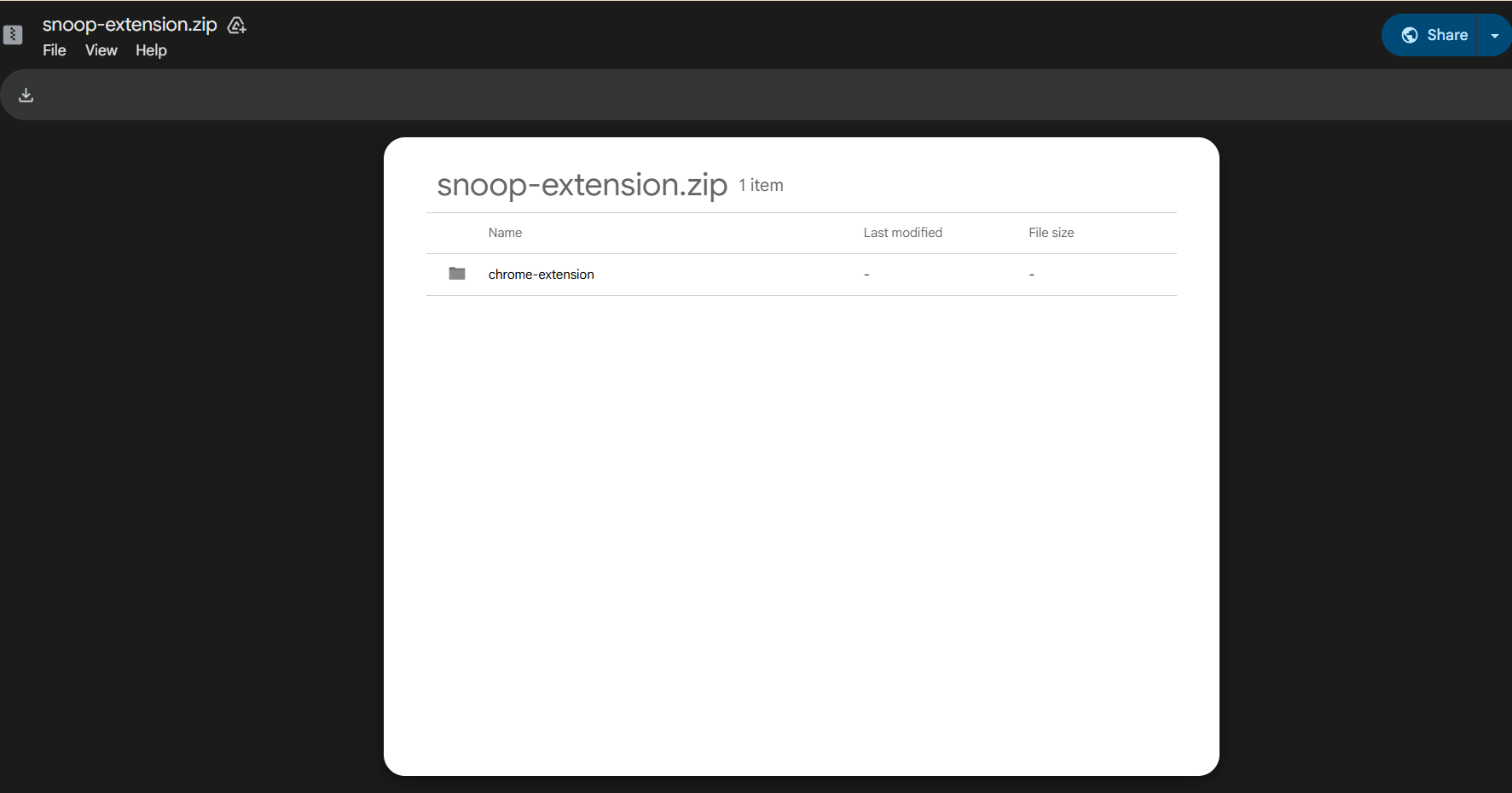
Click the download button above to open the file in Google Drive, then hit the download icon in the upper-left corner (see screenshot below). Unzip the file anywhere on your computer. You should see a folder called chrome-extension — keep it somewhere you won't accidentally delete it (Chrome needs it to stay there).
Open Chrome Extensions
Open Google Chrome and paste this into your address bar:
Press Enter. This opens Chrome's extension management page.
Turn on Developer Mode
In the upper-right corner of the extensions page, find the Developer mode toggle and flip it on.
Three new buttons will appear at the top of the page — that's how you know it worked.
Load the extension
Click the "Load unpacked" button in the upper-left area. A file picker will open — navigate to the folder you unzipped in Step 1 and select it.
Pin it to your toolbar
Click the puzzle piece icon in Chrome's toolbar, then click the pin next to Snoop so it's always visible.
Sign up and log in
Click the Snoop icon in your toolbar. If you don't have an account yet, head to snoopfeed.com to create one. Then come back to the extension popup and log in with your Snoop credentials. That's it — you're in.